Short answer: Read-only access means an AI reporting tool can query Dynamics 365 records but can’t create, change, post or delete them. InsightsCTRL runs every report through a read-only query, limits each person to the data areas an administrator gives them permission to use and records who ran each report and when.
What does read-only access mean for an AI reporting tool?
In an AI reporting tool, the AI model and the data access are separate. The model interprets the question and plans a query. A reporting engine runs that query against Dynamics 365. Read-only access is a property of the engine: it can read records, and it has no way to write them.
For InsightsCTRL, that means no sales order, invoice, journal or item record is created, edited, posted or deleted by a report. The full process is described in our guide to AI reporting for Microsoft Dynamics 365.
Why do IT teams hesitate to connect AI to the ERP?
IT teams usually raise four concerns before approving an AI tool on Dynamics 365.
- Write access. Could a misread instruction change or post a record?
- Exposure across departments. Could someone in Sales see payroll costs or supplier pricing they shouldn’t?
- Uncontrolled usage. Could AI costs grow with no one watching?
- Unexplained output. Could a figure circulate that no one can trace back to its source?
What can InsightsCTRL do with your Dynamics 365 data, and what can’t it do?
| InsightsCTRL can | InsightsCTRL can’t |
|---|---|
| Read records in the data areas a user has permission to use | Create, edit, post or delete any Dynamics 365 record |
| Build reports, summaries and charts from those records | Report on data areas the user has no permission for |
| Save, share, export and schedule the resulting reports | Change Dynamics 365 configuration or security roles |
| Record how each report was made, who ran it and when | Ask more questions than the limits an administrator sets allow |
How are reporting permissions set?
Administrators create data areas and set permissions for each user. A finance controller can review customer margins while a buyer analyzes vendor spend, and neither sees the other’s data area unless an administrator grants it.
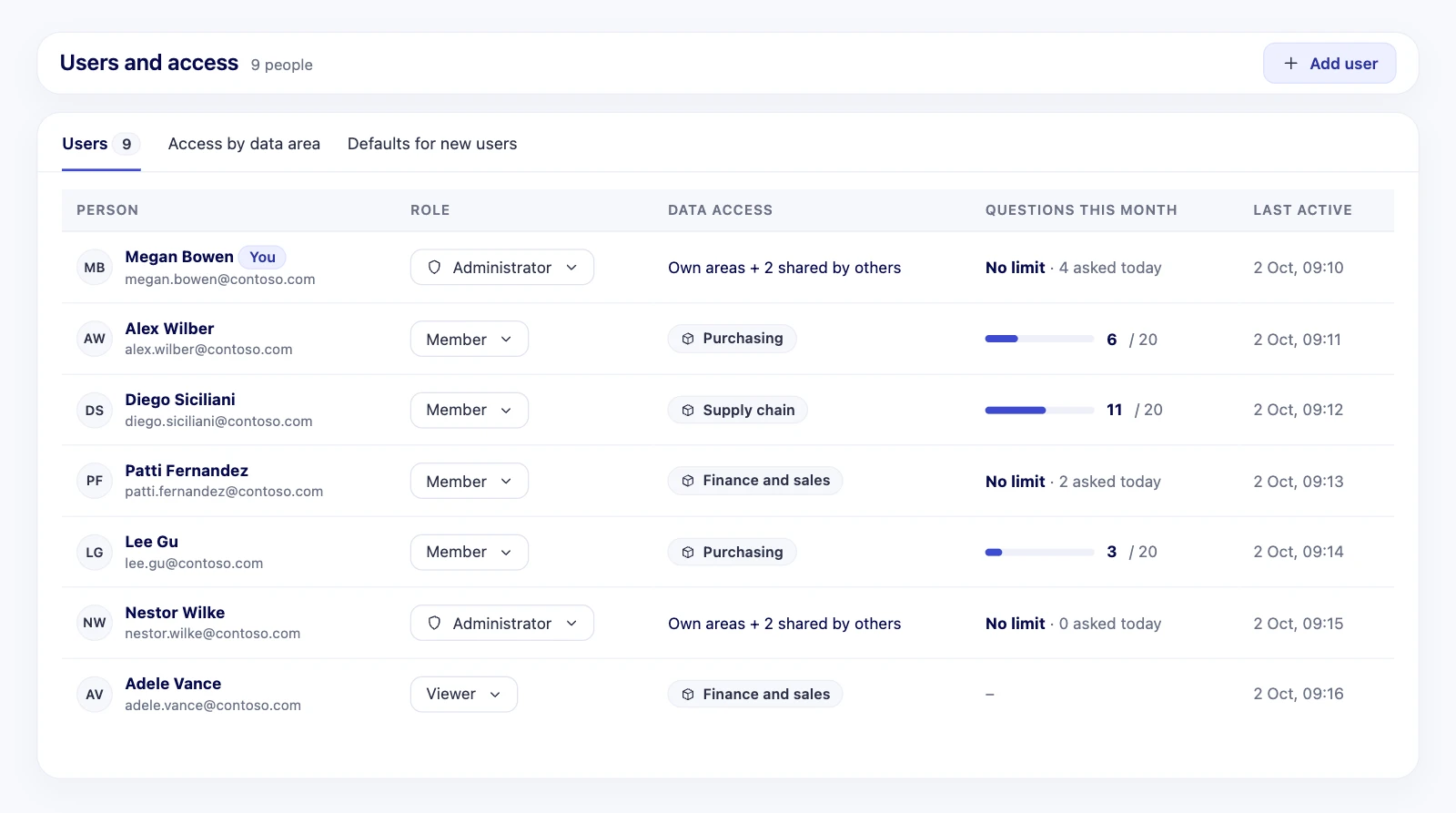
Permissions follow the report. Recipients of a shared or scheduled report need access to the data area it uses, so sharing a report doesn’t become a way around the permission model.
Depends on: data areas that match how your organization divides responsibility. Define them with the business owners before rollout, not after the first access request.
How is AI usage controlled?
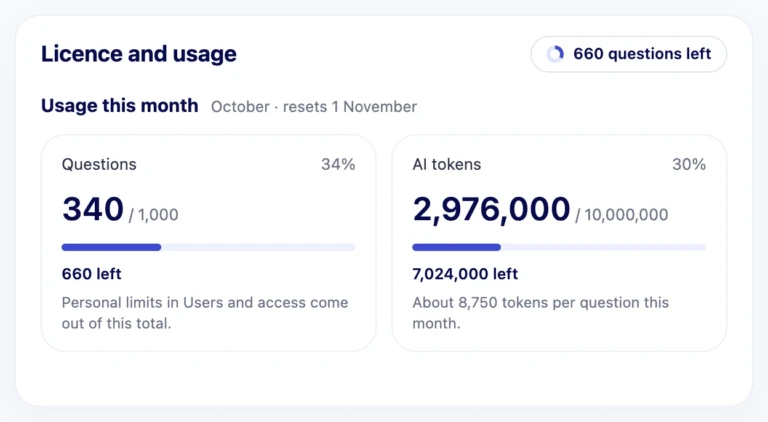
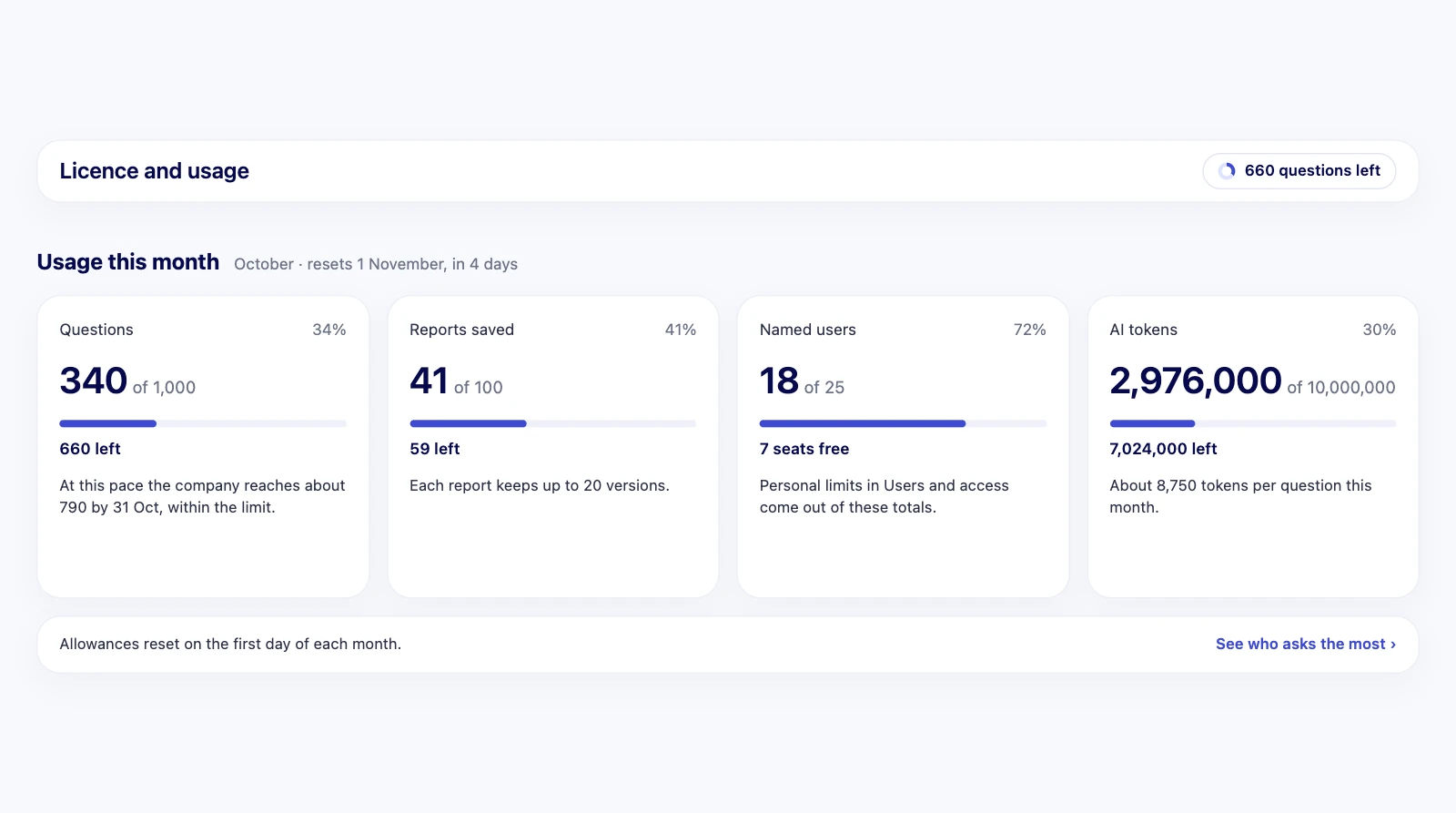
Every seat adds questions to one pool the whole company shares. An administrator can set a daily question limit and a monthly AI token limit for each person, so one person can’t use it all. Scheduled reports reuse the saved report without asking the AI again, so recurring reports take nothing from the pool. Scheduling Dynamics 365 reports explains why.
How can IT verify what a report used?
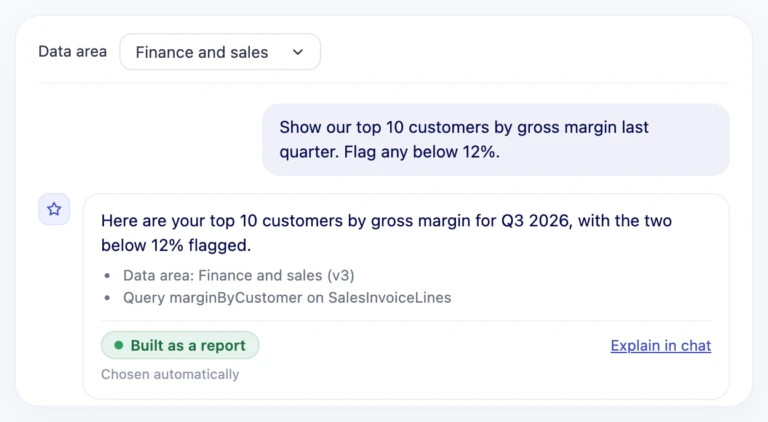
Every report built in Ask carries How it was made: the data area, the tables read, the measures used and each query with its filters. The report header shows who it ran as and when the data was current, and Run history on a saved report lists every run. An administrator can answer “what did this report read?” from the report itself. Checking how an AI-generated report was calculated lists each field.
How does this compare with Microsoft’s approach?
Microsoft’s Fabric data agents query data using the requesting user’s identity and permissions, and Microsoft states that the agent strictly enforces read-only access (Microsoft Learn).
When you evaluate any AI reporting tool, including InsightsCTRL, ask for the same two assurances in writing: that it can’t write to your ERP, and that it can’t show a user data outside their permissions.
What should you ask any AI reporting vendor?
Use these questions in a security review of any vendor, and keep the answers on record before go-live.
- Can the tool create, change, post or delete records in Dynamics 365?
- How are reporting permissions defined, and who assigns them?
- Can a shared or scheduled report reach someone without access to its data?
- Is our data, or are our questions, used to train AI models?
- How are screenshots or files that users paste into the tool stored and deleted?
- How are AI usage and cost limited and reported?
- What record does each report keep of the data and logic behind it?
How do you roll out AI reporting safely?
- Grant the least access that answers the question. Start each team with its own business area and widen it only on request.
- Keep reporting permissions separate from transactional roles. Someone who can post invoices doesn’t automatically need to report on all of Finance.
- Test with a restricted user. Before rollout, run reports as a user with narrow access and confirm what they can’t see.
- Review usage monthly. Usage by person shows adoption, and unusual spikes are worth a conversation.
- Involve IT from the first workshop. Data areas and permissions are easier to design than to retrofit.
Where should IT start?
List the business areas your teams report on, map each one to an owner and decide who needs which. That map is the basis of the permission model, and it is the first thing to bring to a vendor review.
The rest of the process, from question to scheduled report, is in AI reporting for Microsoft Dynamics 365. To walk through permissions, usage limits and How it was made with our team on demo data, book a demo.