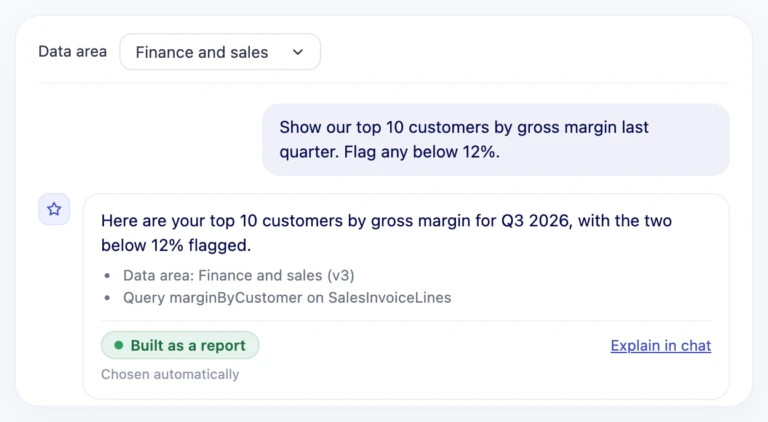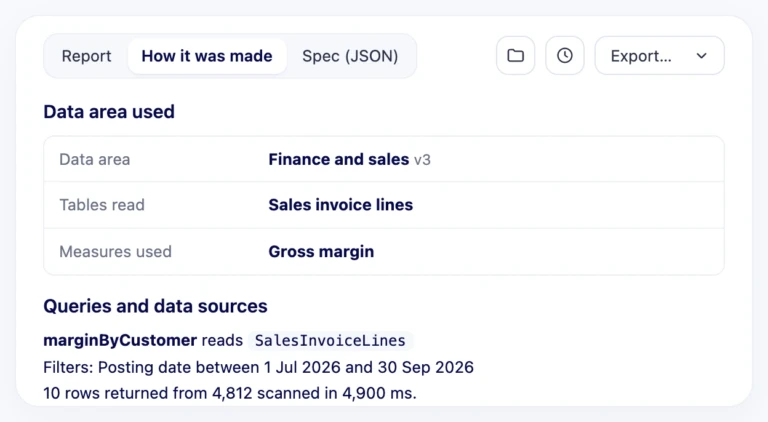
Short answer: To schedule a Dynamics 365 report without rebuilding it, save the report once, then set its recipients and frequency. In InsightsCTRL, a saved report can be emailed hourly, daily, on weekdays, weekly or monthly, and each run refreshes the figures from Dynamics 365 without asking the AI again.
What is a scheduled report?
A scheduled report is a saved report that runs again at set times and goes to a fixed list of recipients. The layout, measures and filters stay the same. Only the figures change, because each run reads the latest data.
Scheduling is the last of the five steps in our guide to AI reporting for Microsoft Dynamics 365: ask, apply, query, review and reuse.
Why does the same report get rebuilt every week?
In most finance and operations teams, the Monday report is rebuilt by hand. Someone exports data from Dynamics 365, pastes it into last week’s workbook, reapplies the filters and emails the result.
That routine fails in predictable ways:
- A filter changes without anyone noticing. This week’s figures are calculated differently from last week’s, and the comparison is wrong.
- The report depends on one person. When they are on leave, the report doesn’t go out.
- The work repeats. Time spent rebuilding a report that hasn’t changed in months adds up across every recurring report the team owns.
How does scheduling work in InsightsCTRL?
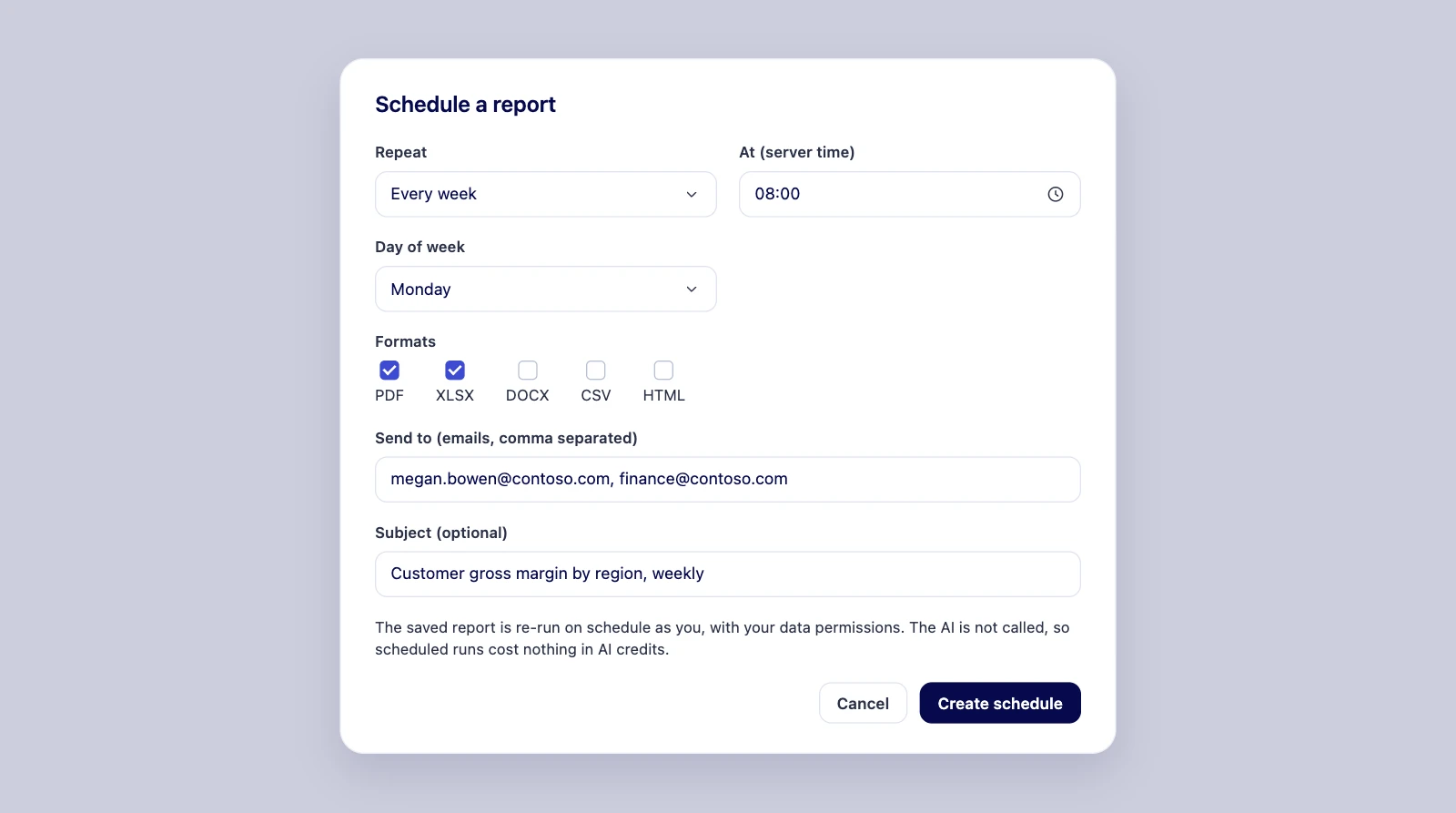
A schedule in InsightsCTRL is attached to a saved report, not to a question. The steps are:
- Build and check the report. Ask the question, refine it with follow-ups and confirm the figures in How it was made. Checking how an AI-generated report was calculated covers what to review.
- Save it to the library. The saved version is the one every run will use.
- Set the schedule. Choose Schedule, then Every hour, Every day, Every weekday, Every week or Every month. Pick the time, the file formats (PDF, Excel, Word, CSV or HTML) and the recipients’ email addresses.
- Let it run. Each run refreshes the figures from Dynamics 365 and sends the result, with the saved report’s measures and layout unchanged.
- Adjust it when needs change. Change the time or the recipients without rebuilding the report.
Depends on: each recipient having access to the data area the report uses. A recipient without access to customer margins shouldn’t receive a customer margin report, scheduled or not.
Which schedule fits which report?
Match the frequency to the decision the report supports, not to habit. The examples below come from the Contoso demo library.
| Report | Audience | Schedule | Why this frequency |
|---|---|---|---|
| Items below minimum stock | Replenishment planner | Weekdays, 07:00 | Shortages need action before the first picks of the day |
| Customer margin by region | Finance controller | Mondays, 08:00 | Margin is reviewed weekly; daily figures move too little to act on |
| Vendor spend share | Purchasing manager | Monthly | Spend concentration changes slowly and feeds monthly supplier reviews |
Finding items below minimum stock in Supply Chain Management walks through the first report in detail.
Why don’t scheduled runs use AI again?
Scheduled runs reuse the saved report so that every run calculates the same way. If every run sent the original question back through an AI model, two Mondays could produce two interpretations of “last week” or “top customers.”
Reusing the saved report also keeps usage predictable. A scheduled email takes nothing from your company’s shared question pool, so a report that goes out every weekday costs the same as one you open once.
How does this compare with Power BI subscriptions?
Power BI email subscriptions send a snapshot of an existing report or dashboard hourly, daily, weekly, monthly or after a data refresh. Reports in Premium or Premium Per User workspaces can attach the full report as a PDF or PowerPoint file (Microsoft Learn).
The difference is where the report comes from. A Power BI subscription needs a report someone has already built and published. An InsightsCTRL schedule can be attached to a report built from a question a few minutes earlier, with no BI build in between. Teams with an established Power BI estate often use both.
How do you keep scheduled reports useful?
- Schedule after the data is current. Send the stock report after overnight jobs finish, and the margin report after cost adjustment has run.
- Name reports by question and audience. “Customer margin by region, Finance, weekly” tells a recipient what they are opening.
- Say what the report measures. Put the measure and period in the report title or the email subject, so a recipient can check a figure without asking the sender.
- Review every schedule each quarter. Retire the reports nobody opens and check that recipient lists still match roles.
- Give each schedule an owner. Someone should be accountable for the report being right, even when no one rebuilds it.
Which report should you schedule first?
Find the report someone in your team rebuilds every Monday. Build it once from a question, check it, save it and schedule it, then compare the first scheduled run with the last manual one.
The other four steps are covered in AI reporting for Microsoft Dynamics 365. To see a report scheduled from your own question on demo data, book a demo.